



How to Use Account Credits
Learn how to add Account Credits, review your balance and history, pay for orders and invoices, and enable automatic renewal.
Account Credits are funds in your MAXKO account that you can use for eligible orders, invoices, and automatic renewals.
1. Open the Credits section
Sign in to your MAXKO client panel and select Credits from the panel navigation.
2. Check your current balance
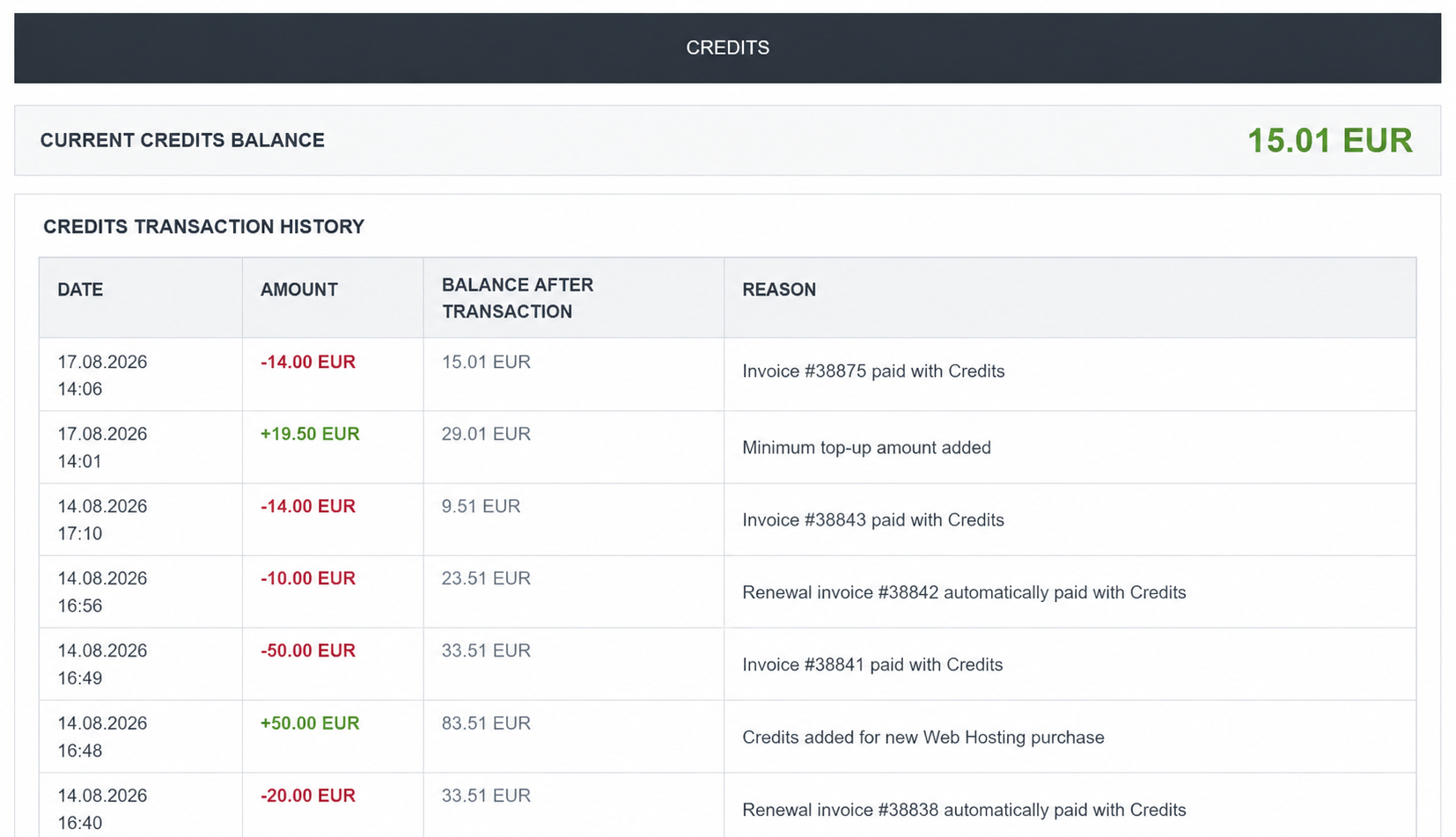
Your current Account Credits balance appears at the top of the Credits page in EUR.
3. Review your transaction history
The Credits Transaction History shows every addition and deduction, the balance after each transaction, and its reason.
4. Add funds and choose a payment method
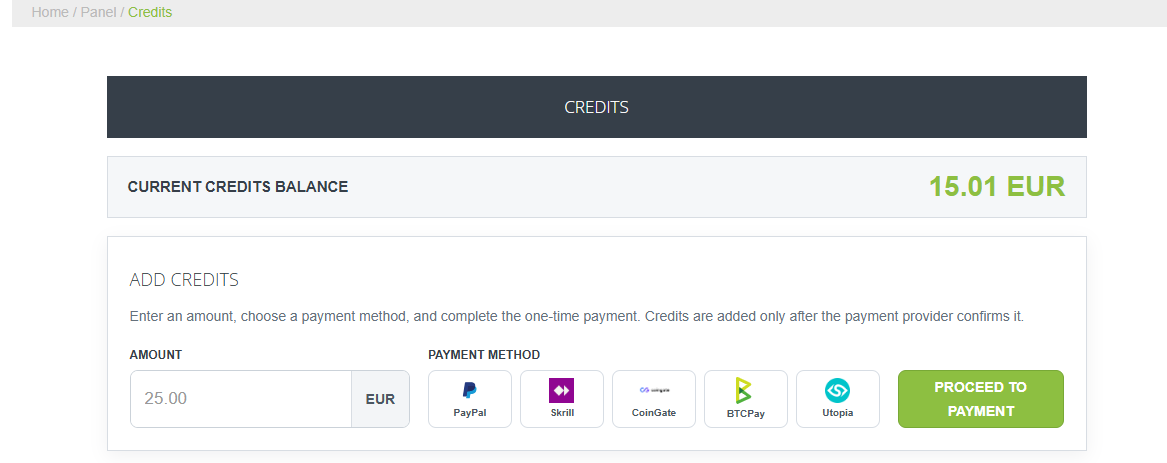
In Add Credits, enter the amount to add. Select an available payment method, choose Proceed to Payment, and complete the provider payment. Funds appear after the provider confirms payment.
5. Pay for a new service or order
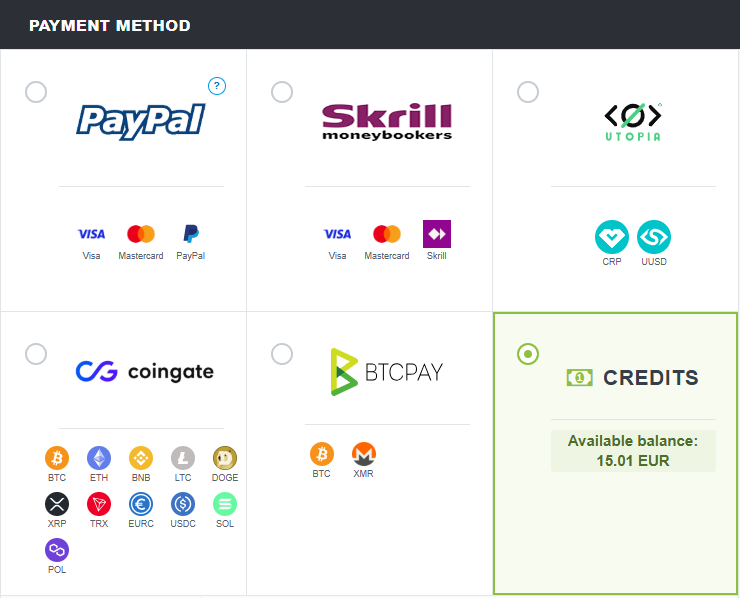
Configure your service and continue to checkout. Select Credits in the payment method list, review the order, and complete checkout.
6. Pay an existing unpaid invoice
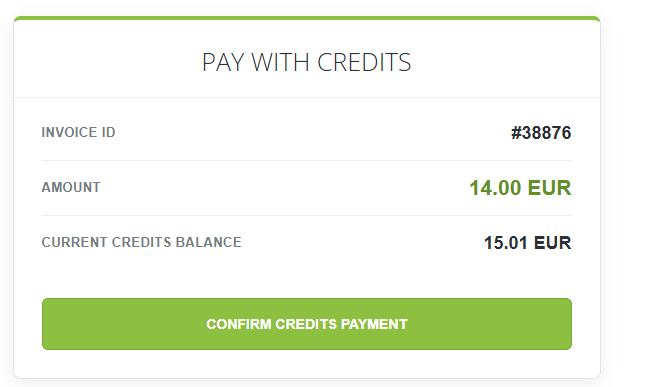
Open the unpaid invoice. Where Credits payment is available, choose Pay with Credits. Review the invoice ID, amount, and balance, then select Confirm Credits Payment.
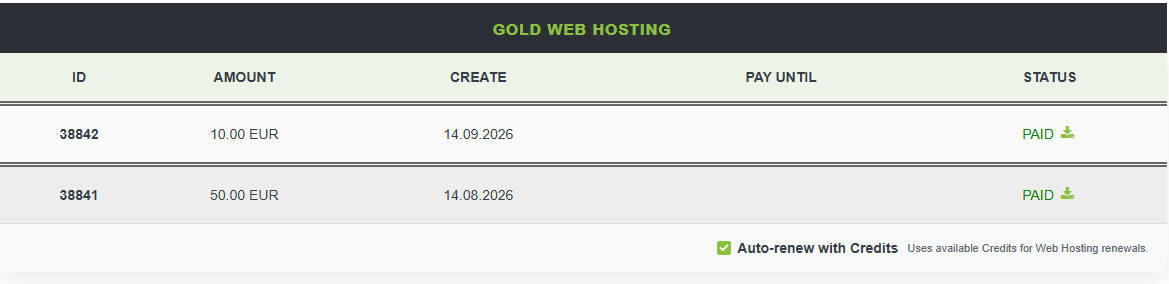
7. Enable Automatic Renewal with Credits
Open a supported service and find its billing area. Enable Auto-renew with Credits. MAXKO will use available Credits for the next eligible renewal. Keep enough Credits before the renewal date; you can turn this option off later.
8. If your balance is insufficient
If Credits do not cover the full amount, payment cannot be completed. Top up your balance or choose another available payment method.
An automatic renewal also cannot be paid when the balance is too low. Add funds before the due date and check the service or invoice status.