


Turn on two-factor authentication in the customer panel in a few minutes, save your backup codes and log in with a code from your phone.
Two-factor authentication (2FA) adds a second step to your MAXKO login. After your password, you enter a 6-digit code from an app on your phone. Even if someone learns your password, they cannot open your account without your phone.
What you need
- Your login for the new customer panel.
- A phone with an authenticator app, for example Google Authenticator, Microsoft Authenticator, Aegis or 2FAS. All of them are free.
- About two minutes.
Step 1 - Open My Account
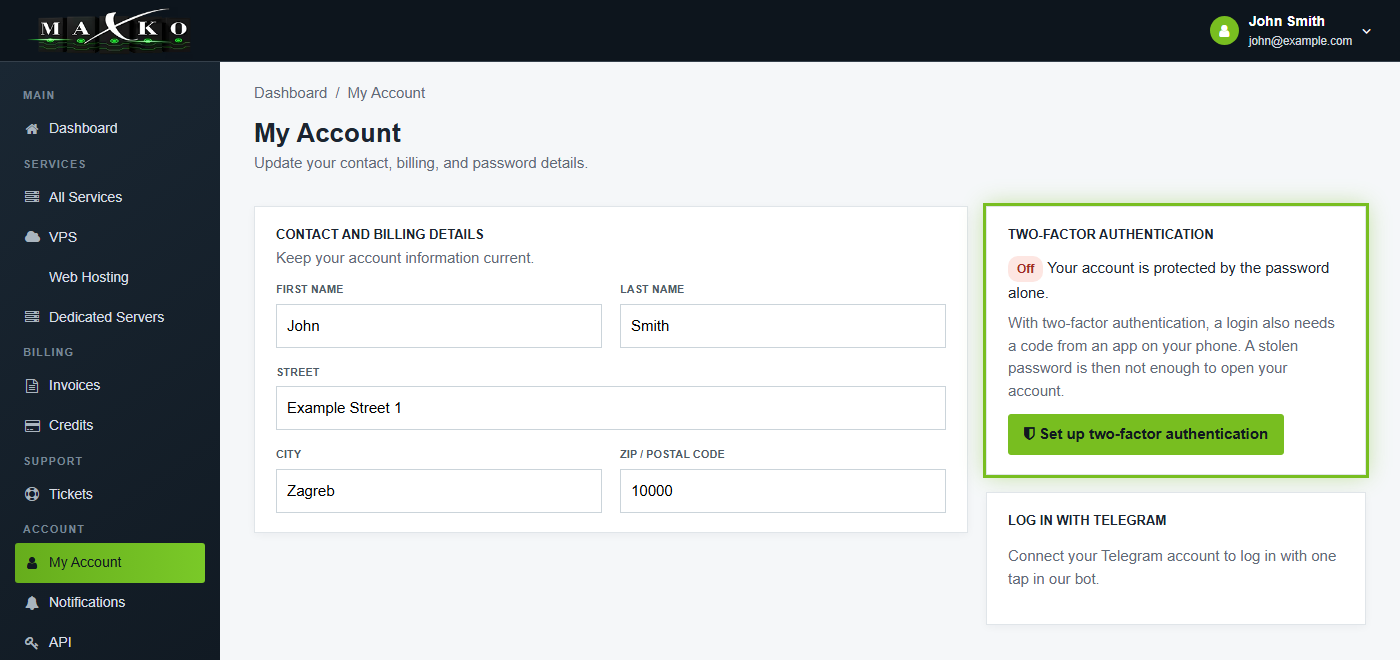
Log in to the customer panel and click My Account in the menu on the left. On the right side of the page you will find the Two-factor authentication card with the status Off. Click Set up two-factor authentication.
Step 2 - Scan the QR code
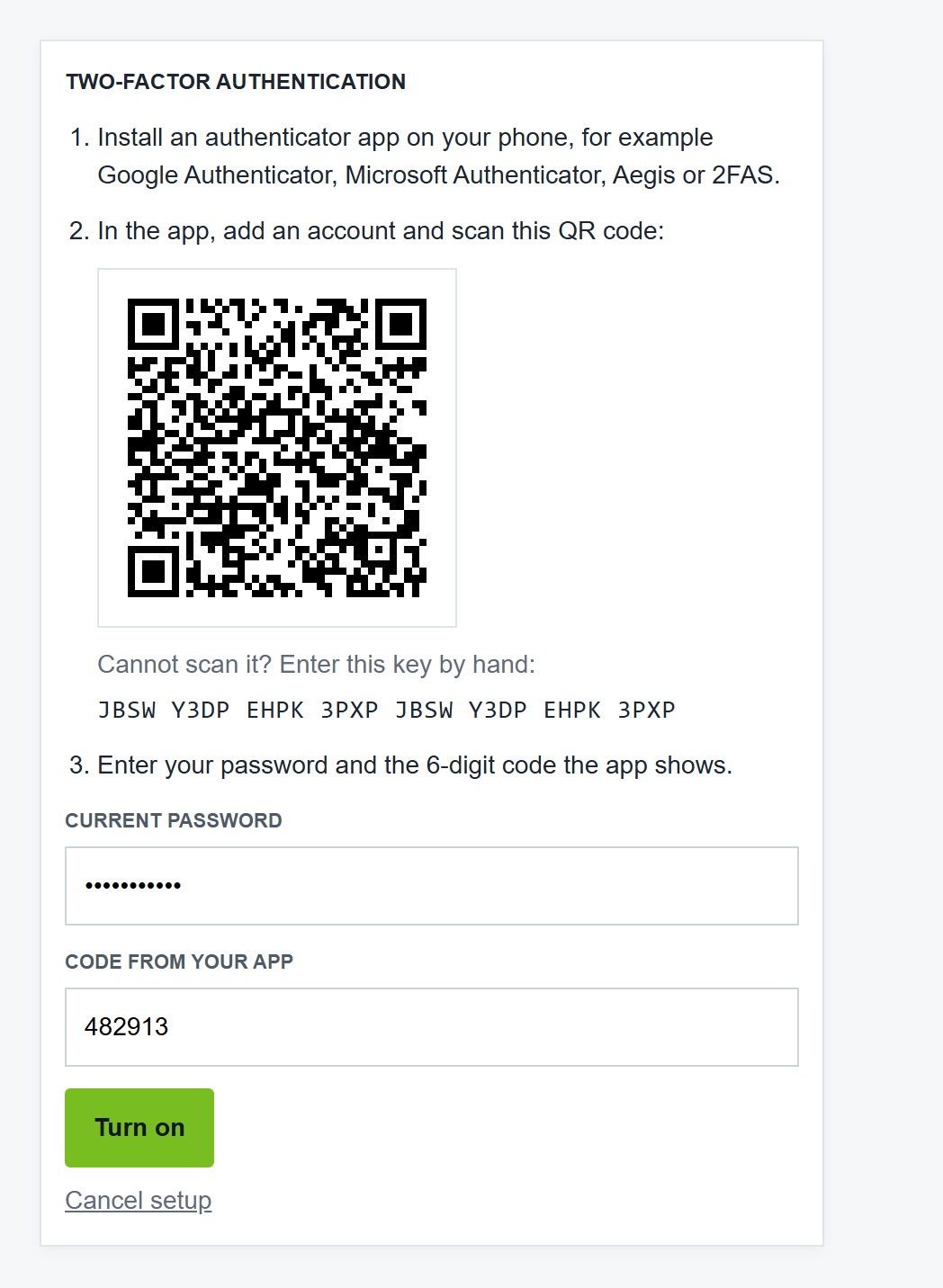
Open the authenticator app on your phone, add a new account (usually the + button) and choose to scan a QR code. Point the camera at the QR code in the panel. The app now shows MAXKO Hosting with your username and a 6-digit code that changes every 30 seconds.
If you cannot scan the code, choose to enter a setup key in the app and type the key shown under the QR code. Finish the setup within 15 minutes; after that, click Set up again to get a new code.
Step 3 - Turn it on
Enter your current password and the code the app shows right now, then click Turn on. 2FA is switched on only after a correct code, so a typing mistake cannot lock you out of your account.
Step 4 - Save your backup codes
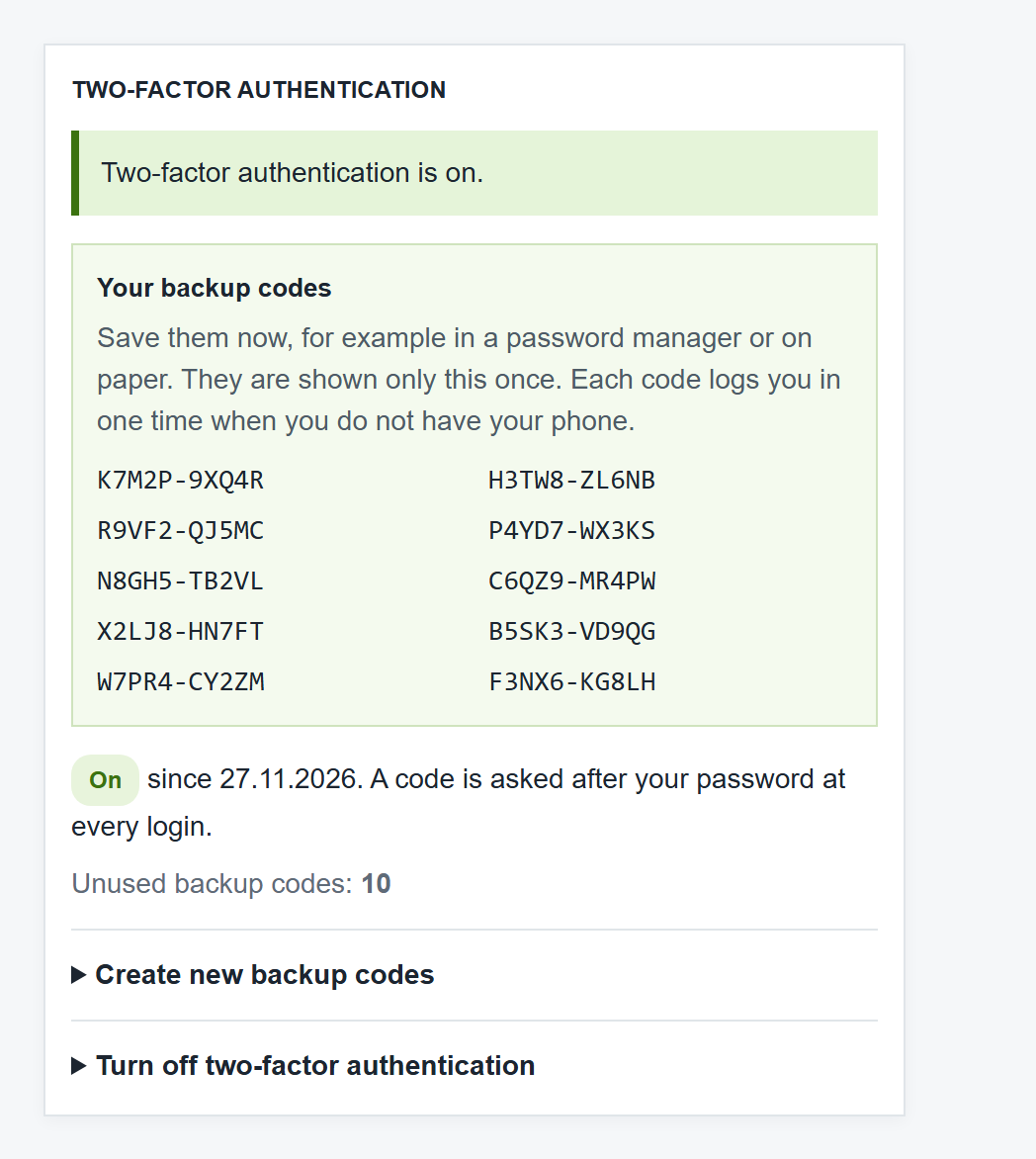
After 2FA is on, the panel shows 10 backup codes. They are shown only once. Each code works for one login when you do not have your phone. Save them in a password manager or print them and keep them in a safe place.
We also send you an email whenever 2FA is switched on or off, so you know about every change.
Step 5 - Log in with 2FA
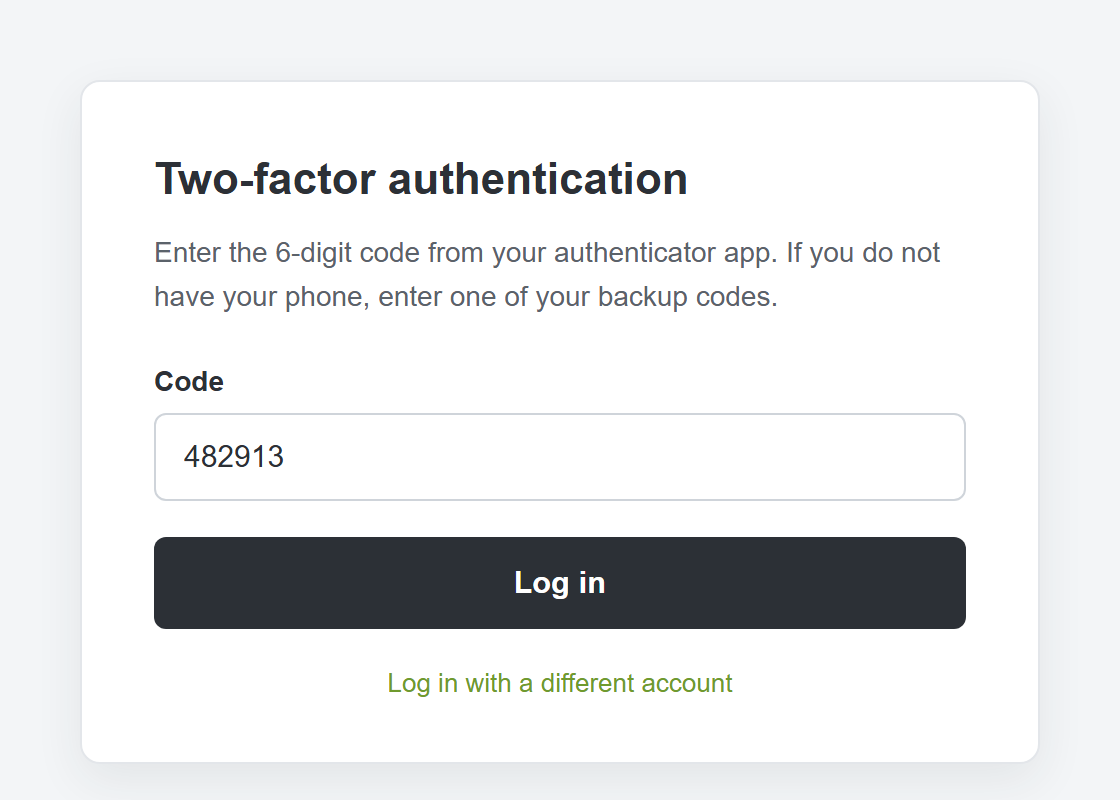
From now on, the login page asks for a code after your password. Open the app, enter the current code and click Log in. Logging in with Telegram asks for the same code.
Lost your phone?
Enter one of your backup codes instead of the code from the app. Once you are logged in, open My Account, turn off two-factor authentication with your password and a backup code, and set it up again on your new phone.
If you have neither your phone nor your backup codes, contact our support. After we confirm that the account is yours, we remove 2FA so you can log in with your password and set it up again.
Good to know
- Codes depend on the time, so keep the date and time on your phone set automatically.
- The panel shows how many backup codes you have left. When only a few are left, create new ones under Create new backup codes; the old ones then stop working.
- API keys from API Access work without the code, so keep them secret and revoke the ones you do not use.